Scarlet AI Stylist Guide: Choose, Style, Save and Compare Dresses
Scarlet CouturePublished
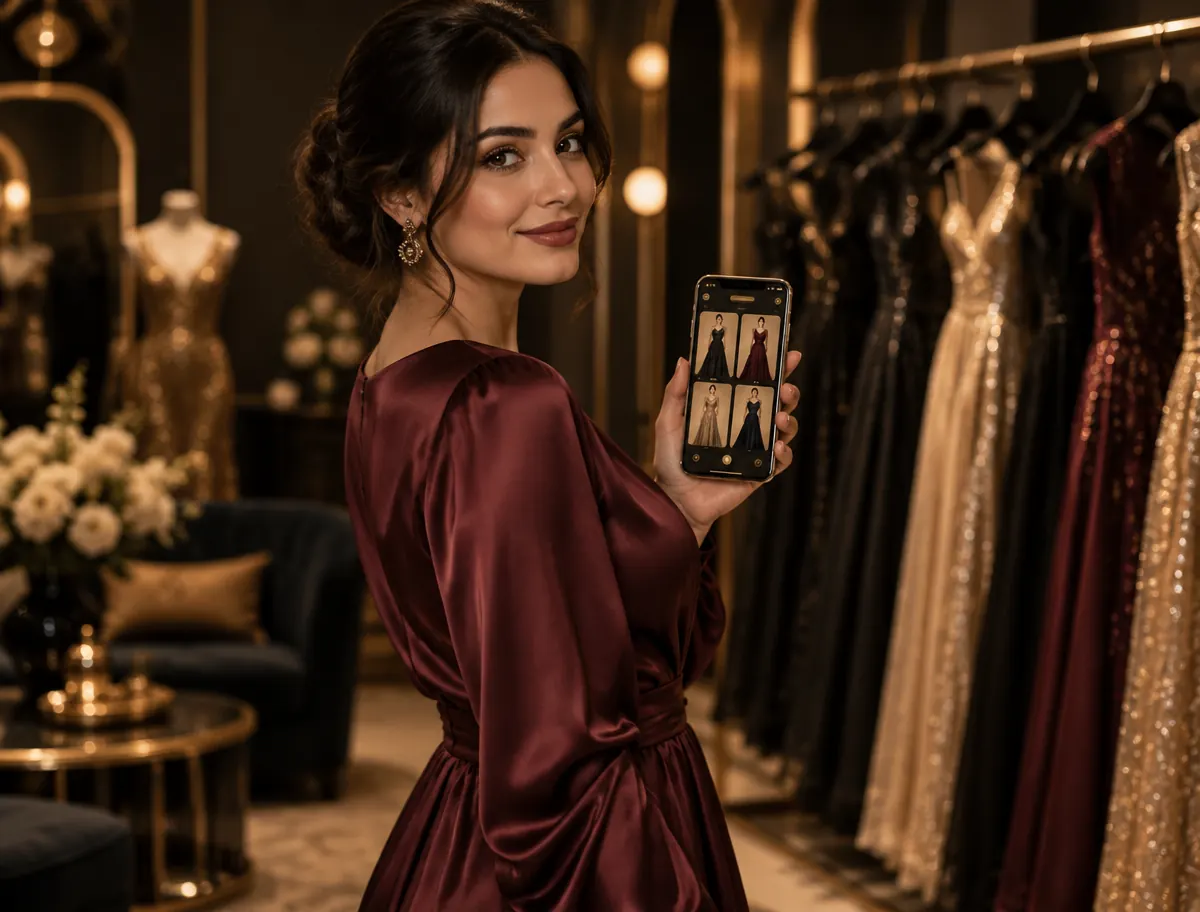
Scarlet AI Stylist helps you choose a dress from Scarlet Couture’s catalog by occasion and budget, explore styling ideas, save favorites, compare dresses, and contact the boutique in Al-Bireh.
Looking for evening dresses in Ramallah and Al-Bireh? This guide takes you from your occasion to a shorter list of dresses to discuss with the boutique. Recommendations do not confirm size availability, reserve stock, or book a fitting.
What is Scarlet AI Stylist?
Still looking for a dress? Start with “Help me choose a dress” to explore Scarlet’s catalog. Already have a favorite? Choose “Style a dress” for jewelry, hair or hijab, bag, and shoe ideas to go with it. Open Scarlet AI Stylist and start with whichever you need.
Quick start
- Select an occasion and maximum budget, then choose “Recommend dresses”.
- Save favorites with the heart or select “Compare” on two or three results.
- Choose “View and style” on a dress you like.
- Select a mood, request styling, then read the advice and explore the inspiration board.
- Ask about availability or request a fitting through WhatsApp; the boutique confirms the details.
1. Get recommendations for your occasion and budget
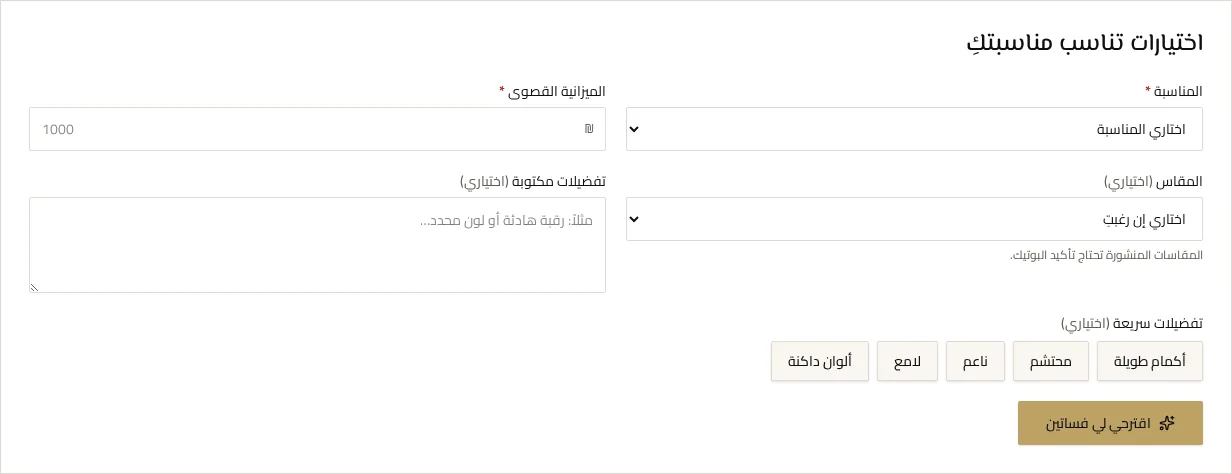
In “Help me choose a dress”, select an occasion and enter your maximum budget in ILS (shekels). These two fields are required. Size and preferences are optional.
- Size: select your size if you know it, or “I don't know my size”. A size listed on the site may not be available right now, so check with the boutique.
- Written preferences: describe what matters, such as “Understated, dark color, long sleeves”.
- Quick preferences: choose Long sleeves, Modest, Understated, Shimmering, or Dark colors. Keep these consistent with your written request.
For example, choose an evening occasion, set a maximum budget of 1000 ILS, and ask for dark colors with understated details. Tap “Recommend dresses” to search Scarlet’s catalog for dresses with listed prices within your budget. This is just an example to get started; your results depend on the dresses in the catalog.
Each result shows the dress photo, reference, name, price, listed sizes, and why it was suggested. If you ask for a modest dress, suggestions use the description on the site; check with the boutique about any coverage details that aren’t clear.
2. Find the “View and style” button
Look at the bottom of each recommended dress, beside the heart and above “Compare”. Tap it to open that dress for styling, then press “Style this dress” or “Suggest a look” to request advice. Simply opening the dress does not start creating an inspiration board.
3. Style a dress you already have in mind
Open “Style a dress”, search by name, reference, or color, and press “Choose”. You can also follow the Scarlet AI Stylist link on a dress page. You do not need to run recommendations first.
For white Katb el-Kitab dresses in the styling picker, search “كتب”, “كتب الكتاب”, or “white”. This shows only dresses assigned to the White Dresses collection, not every pale-colored dress.
Use “Change dress” to choose another; the current selection remains until you select a replacement. You can also browse all dresses or the White Dresses collection.
4. Choose Classic, Romantic, or Bold
The mood options appear under “Style this dress”. Changing mood requests styling for that mood or shows advice previously prepared for it.
- Classic: a starting point for a balanced, polished look.
- Romantic: a softer styling direction.
- Bold: a more striking direction.
These are styling directions, not fixed color palettes. Accessory colors are suggested from the dress’s published color and description together with the selected mood. Similar colors may suit more than one mood; changing mood does not guarantee that every accessory changes.
5. Read the advice and inspiration board
Browse Jewelry, Hair & Hijab, Bag & Shoes, and Fitting Tip for the advice you need. You may also see “Why these colors?”, explaining how the jewelry, shoe, and clutch colors work with your dress. This explanation isn’t included in every result.
Once your advice is ready, the inspiration board starts taking shape, with a progress bar while you wait. Tap the finished board to enlarge it. If no image appears, use “Create inspiration board” or “Try the image again” when available.
The board is visual inspiration, not a photograph of accessories for sale. Use the original dress photo shown beside it for actual dress details; generated elements may differ. Accessories are not included and are not confirmed boutique inventory.
6. Save favorites and styling notes
Tap the heart beside “View and style” to save or remove a dress. Open your saved list with the heart at the top of the site or through My list.
Below the advice, press “Save notes to my list” to save written styling notes with the dress, adding the dress if needed. This does not save the inspiration image. The list is stored in this browser, not synchronized across devices, and may be lost if you clear site data.
7. Compare two or three dresses
- Select “Compare” below each recommendation you want to include.
- Once two are selected, press “Compare dresses” in the bottom bar. You can select up to three.
- Compare photos, prices, published sizes, colors, occasions, and descriptions side by side, including on mobile.
- Remove a dress with the × on its thumbnail in the comparison bar.
The comparison puts the dress details together so you can decide which you prefer. It shows the information listed on the site, not confirmation that a size is available. From here, you can style one dress or request a fitting for one or all of your selected dresses.
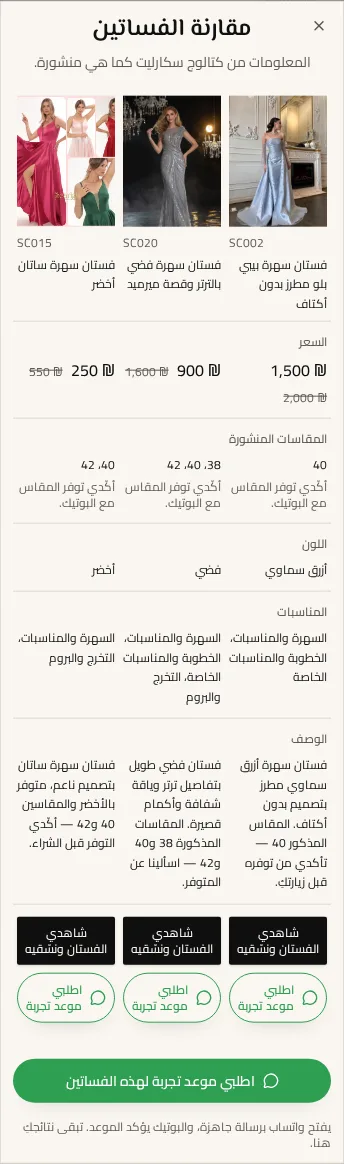
8. Request a fitting or ask about availability
Choose “Request a fitting” for one dress, or “Request a fitting for these dresses” in the comparison. WhatsApp opens with a draft listing your choices and asking the boutique to confirm details. Review it, add your preferred day and time if useful, then send it yourself in WhatsApp.
Opening the link does not send the message, confirm a fitting, or reserve a dress. The boutique confirms the time, size, and availability. You can also use “Ask availability on WhatsApp” under styling advice. Opening WhatsApp from the comparison preserves your current results.
The boutique is on Saad bin Waqas St, Al-Bireh. Opening hours are Sunday–Thursday and Saturday, 10:00–20:00 local boutique time; Friday is closed. Check the Visit page for the map and contact details before traveling.
9. Troubleshooting results, advice, and images
- No dresses within your budget? Adjust it if that works for you, or ask the boutique about other options. The search uses listed prices, so it leaves out dresses without a published price.
- Unhelpful matches: write more precise preferences, remove contradictions, and request recommendations again.
- Size missing or not listed: ask the boutique rather than assuming it is unavailable.
- Still waiting, or seeing an error? Check your internet connection and use “Try again” or request recommendations again. Waiting times can vary.
- No inspiration board? You can still use the written advice, save favorites, compare dresses, and contact the boutique through WhatsApp.
Frequently asked questions
Does it recommend dresses from other shops?
No. Every recommended dress comes from Scarlet’s catalog. The accessories in the inspiration board are styling ideas, not items listed for sale.
Do the shown price and sizes confirm availability?
No. They are the details published for each dress. Confirm availability, color, and size with the boutique before visiting.
Can I buy or reserve a dress online?
No, you can’t buy, pay for, or reserve a dress on the site. You can request a fitting through WhatsApp, then confirm the appointment and details with the boutique.
Can I use the site in Arabic?
Yes. Arabic is the default; use the language control at the top of the site to switch. Read this guide in Arabic.
Ready to find your look?
Open Scarlet AI Stylist, enter your occasion and budget, save your favorites, then compare and explore styling. When you have a shorter list, contact the boutique to confirm the details before visiting.